How to make stickers on iPhone
Last updated
You have a great photo of your cat, your friend’s best face, or last night’s pizza. You want it as a sticker for the group chat. Your iPhone can do that on its own. This guide shows how, and then a faster way when you have a whole pile of photos.
How do I turn a photo into a sticker on iPhone?
Use Live Stickers in the Photos app. It cuts the subject out of a photo and saves it as a sticker. Apple added it in iOS 17, and the steps below follow Apple’s iPhone guide.
- Open the Photos app and tap a photo to open it full screen.
- Touch and hold the subject, then let go.
- Tap Add Sticker.
- Tap Add Effect if you want an effect such as Outline or Comic. On a Live Photo you can also turn the animation on or off.
- Close the stickers menu.
That is it. One photo, one sticker, a few taps. Menu names can change between iOS versions, so if a label looks different, check Apple’s page in the Sources list below.
How do I use my sticker in iMessage?
Once a sticker is in your stickers menu, you can send it from Messages.
- Open a conversation in Messages.
- Tap the + button next to the message field.
- Tap Stickers and pick your sticker.
- Send it, or touch and hold it and drag it onto a message bubble.
You can also reach the same stickers from the keyboard’s sticker button, and from Markup tools when you draw on a photo.
Where are my stickers saved?
They live in your stickers menu, which you open from the keyboard or Markup. Apple says your stickers sync with iCloud, so they appear on your iPad and Mac when you are signed in with the same Apple Account.
To delete one, follow the “Delete a sticker” steps in Apple’s guide: in Markup, open Add Sticker, touch and hold the sticker, then tap Remove.
What if the sticker option does not show up?
This is the most common complaint, and Apple’s guide does not list every reason. Here is what usually helps:
- Update iOS. Live Stickers needs iOS 17 or later.
- Open the picture in the Photos app, not in another app.
- Touch and hold on the subject itself, not on empty background.
- Try a photo where the subject is clear and not tangled up with what is behind it.
If one photo just will not work, you are not stuck. A different app can do the cutout and let you fix the edge by hand.
The faster way for lots of photos: PAPLO
Live Stickers works one photo at a time. If you want ten stickers of your dog, or every dish from a dinner, that gets slow. PAPLO is built for the batch. It cuts out the subjects on your phone, then lets you add borders and captions, and send the results anywhere.
PAPLO is on the App Store. It works on iPhone with iOS 15.5 or later. Here is how the flow works.
- Open PAPLO. The first time, tap Make your first sticker for the camera or Import photos for your library. After that, use the Import button on the camera screen.
- Pick up to 50 photos in one go, or snap them one after another with the shutter. Tap the Done button when you have enough.
- Wait for the cutouts. PAPLO shows “Cutting out” with your photo count. Everything is cut out on your phone.
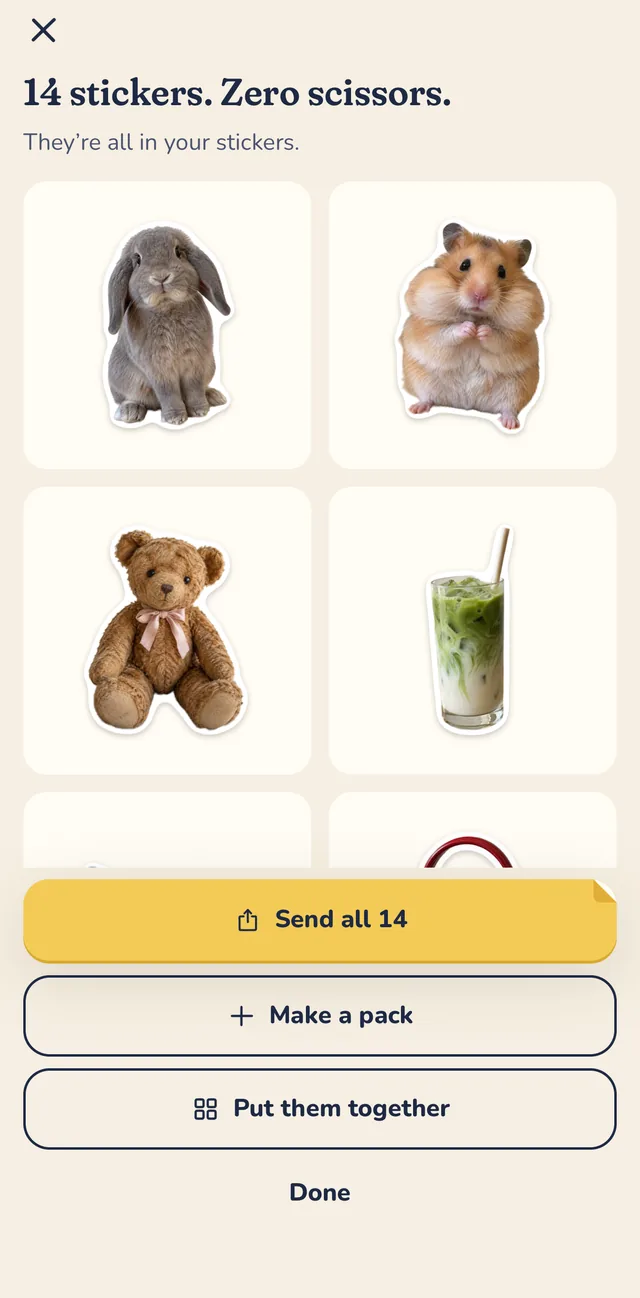
- On the finish screen, tap Done to go to your library, or choose Send all or Make a pack. Put them together appears with 3 or more stickers.
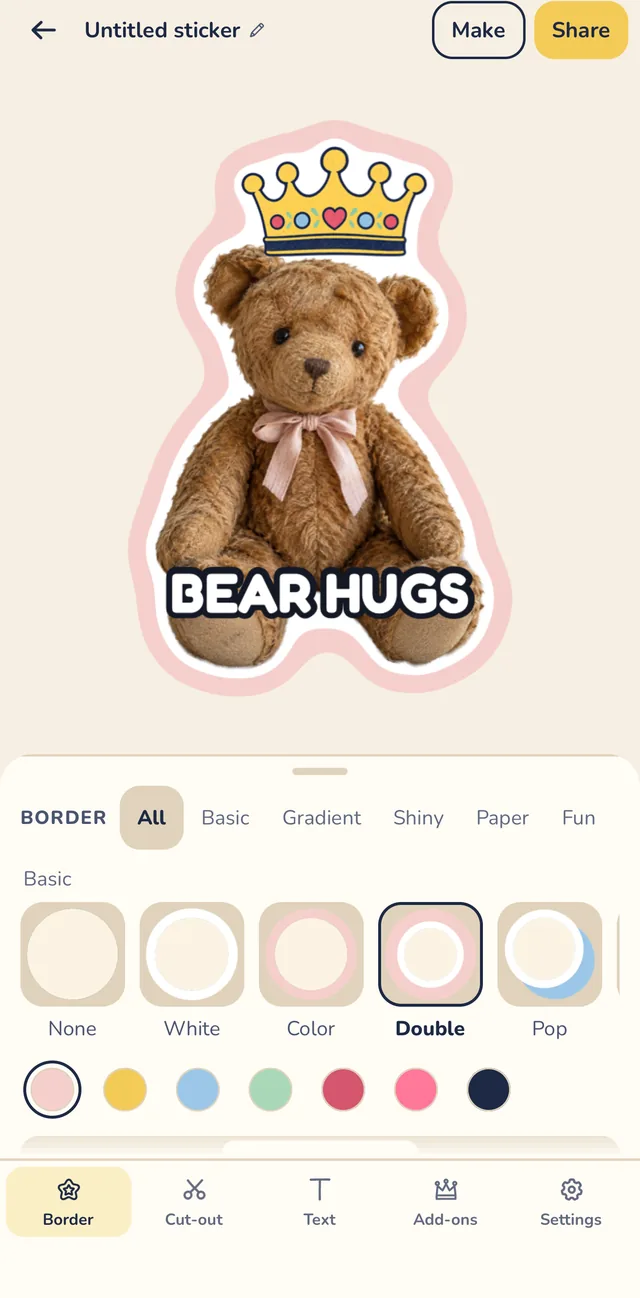
- Tap any sticker to open the editor. Under Border, pick an outline and set it to Thin, Regular or Thick.
- Open Text and type a Caption. Pick a Meme, Label or Tape style, top or bottom.
- If the cutout is off, tap Cut-out, then Open cut-out editor, and use Erase and Restore to fix it. If a photo will not cut out, choose Fix it by hand or Use the whole photo as a sticker.
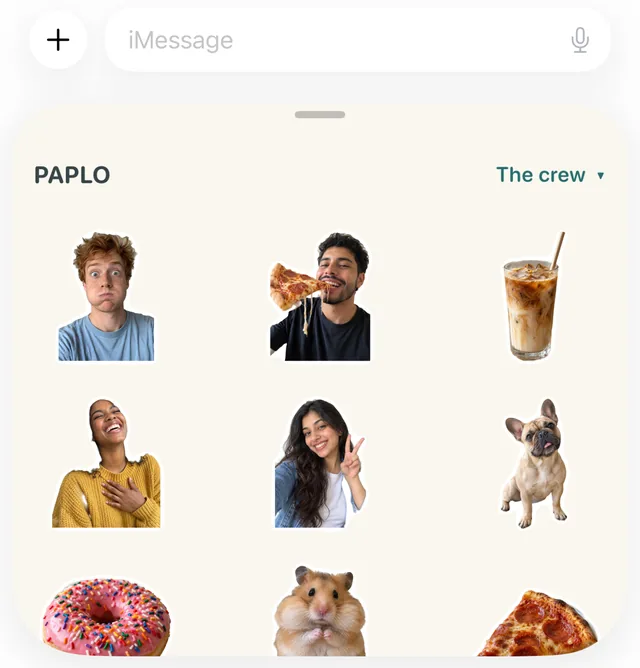
- Tap Share. On iPhone you get Messages, Save, Copy and More, which opens the normal share sheet. PAPLO can also send a pack to your Messages sticker drawer with Send to, then Messages.
PAPLO saves as you go, so you can close the app and come back.
Where to find your pack
After sending a pack to Messages, find it in the sticker drawer.
To try a pack before you make your own, add the free Ploo: Original or Group chat pack inside PAPLO and send it to Messages, or see more on the iMessage sticker packs page.
Which way is better for you?
| You want to… | Better pick |
|---|---|
| Make one quick sticker from one photo | Live Stickers in Photos |
| Stay inside Apple apps | Live Stickers |
| Cut out many photos at once | PAPLO |
| Add a border or a caption | PAPLO |
| Build a pack for WhatsApp or Telegram | PAPLO |
Both are free to start with. Live Stickers is already on your phone, so try it first. If you find yourself making more than a few stickers, PAPLO saves time. PAPLO is not a replacement for Apple’s tool. It is the next step when you want to do more.
Want to go further? Read how to make iMessage stickers, how to turn a photo into a WhatsApp sticker, or see all sticker guides. If something in PAPLO is not clear, visit support.
Get PAPLO
Quick answers
Why can’t I turn a photo into a sticker on my iPhone?
The usual causes are an older iOS (Live Stickers arrived in iOS 17), a photo where the subject is hard to tell apart from the background, or holding in the wrong place. Update iOS, open the photo in the Photos app, and touch and hold the subject itself. If it still will not lift, pick a photo where the subject stands out, or cut it out in PAPLO and fix the edge by hand.
Where are my stickers saved on iPhone?
Stickers you add from Photos show up in your stickers menu, which you reach from the keyboard or from Markup tools. Apple says they sync through iCloud to your other devices signed in to the same Apple Account. Stickers you make in PAPLO live in the PAPLO library on your phone.
Is making iMessage stickers free?
Live Stickers is part of iOS, so you do not need an app. PAPLO is free to use for making and sending stickers, with an optional one-time PAPLO Plus purchase and no subscription.
Can I send my iPhone stickers to WhatsApp or Telegram?
Live Stickers is built for Messages and Markup. For WhatsApp and Telegram, PAPLO can send single stickers or whole sticker packs. See the WhatsApp guide and the Telegram guide.
Sources
- Apple Support: Make stickers from your photos on iPhone
- Apple Support: Send stickers in Messages on iPhone
Menus change between app versions. If a step looks different on your phone, the official page above is the final word.