How to make stickers on Android
Last updated
Android phones can turn a photo into a sticker without any extra app. It depends on your phone, though. Here is what works, what to do if yours does not, and a faster way when you have many photos.
How do I make a sticker from a photo on Android?
There are two built-in routes. Which one you have depends on your phone.
With Google Photos
Google added sticker creation to Google Photos on Android. Google says it works on most Android devices that have the latest update and at least 4 GB of RAM.
- Open Google Photos and tap a photo.
- Look for the shimmer outline around the subject.
- Touch and hold the subject.
- Choose Copy or Share.
- Paste or share the sticker into an app such as WhatsApp, Instagram or Messages.
Google’s tip: use a photo where the subject is clear and in the foreground. Google also says stickers cannot be edited yet.
With Samsung Gallery
On Galaxy phones, the Gallery app has its own tool. Samsung says features and menus can vary by device and software version.
- Open Gallery and pick the picture.
- Touch and hold the subject you want in the sticker.
- Tap Save as sticker.
- Choose a sticker style, then tap Done.
- In a chat, open the emoji button on the Samsung keyboard and look for Custom stickers to send it.
There is also a Create sticker option in the Gallery editor, under the decorations tools, if you want to place a sticker onto another picture.
Why doesn’t my phone offer stickers?
Not every Android phone has these tools. They depend on your phone, its software version and, for Google Photos, its memory. If you do not see the touch-and-hold option:
- Update Google Photos or your phone software.
- Check the requirements above, like the 4 GB of RAM for Google Photos.
- Try a clearer photo with the subject standing apart from the background.
If your phone just does not have it, a sticker app fills the gap.
What if the cutout is wrong?
Google Photos stickers cannot be edited, so if the phone clipped an ear or kept part of the sofa, you try another photo. Samsung’s Create sticker tool lets you pick the area by hand on some versions. Either way, you work one photo at a time.
The faster way for lots of photos: PAPLO
PAPLO cuts out stickers on your phone, lets you fix the edge, and sends them to your chat apps. It handles a big batch of photos at once.
PAPLO is on Google Play. It works on Android 7.0 or later.
- Open PAPLO. The first time, tap Make your first sticker to snap, or Import photos to pick from your gallery. After that, the Import button on the camera screen takes up to 50 photos at a time.
- PAPLO shows “Cutting out” with your photo count and cuts every photo out on your phone.
- On the finish screen, tap Done to go to your library, or choose Send all or Make a pack. Put them together appears with 3 or more stickers.
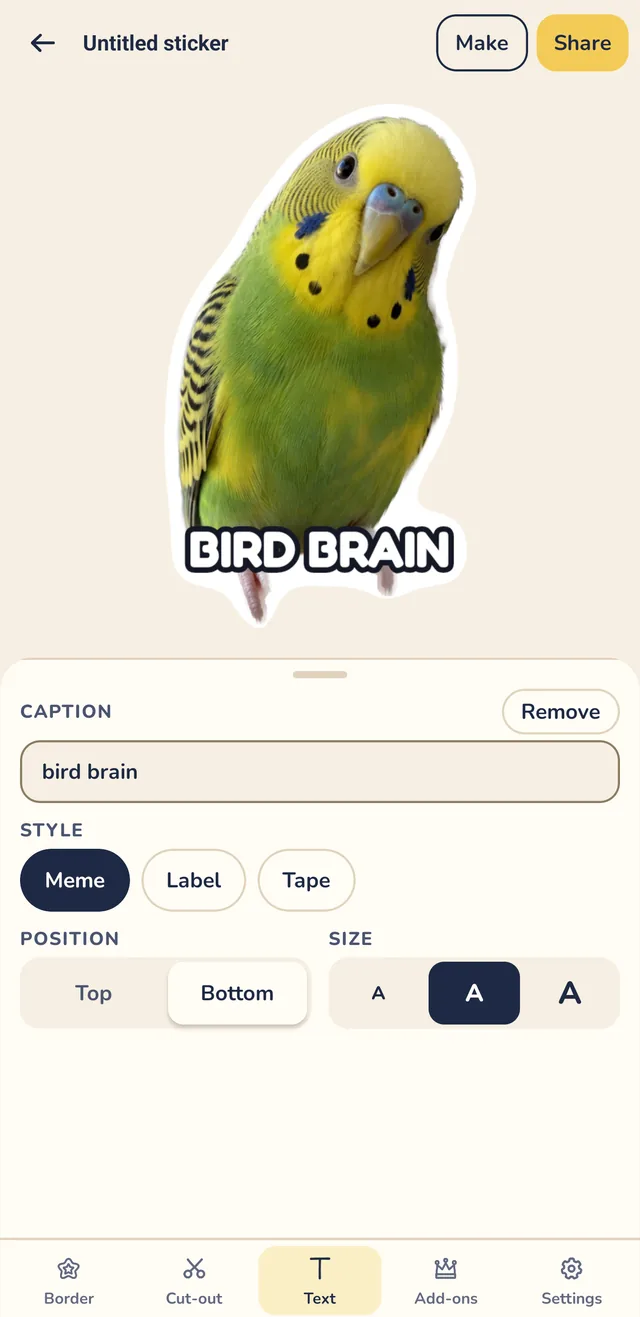
- Tap a sticker to edit it. Under Border, pick an outline and width: Thin, Regular or Thick.
- Under Text, type a Caption and pick a Meme, Label or Tape style.
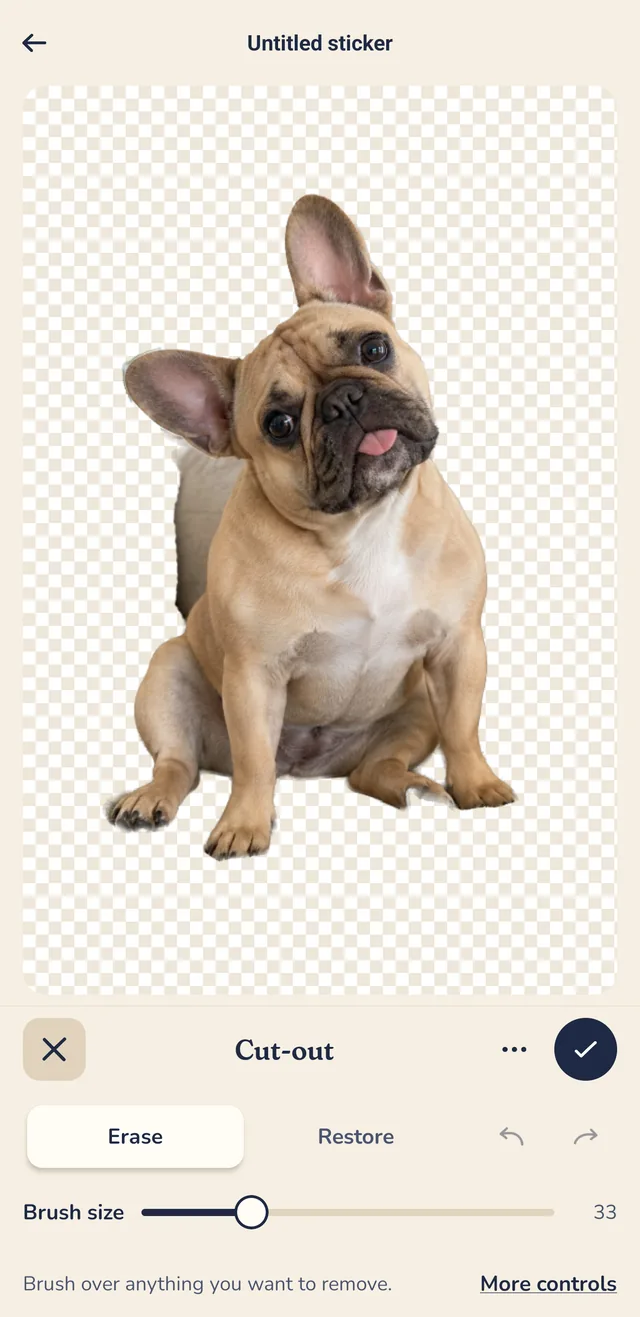
- If an edge is wrong, open Cut-out, tap Open cut-out editor and use Erase and Restore. If a photo will not cut out, choose Fix it by hand or Use the whole photo as a sticker.
- Tap Share. The Send sticker sheet shows a row of the chat apps you have installed, like WhatsApp, Telegram, Messenger, Zalo and Messages. Below it are Save, Copy and More.
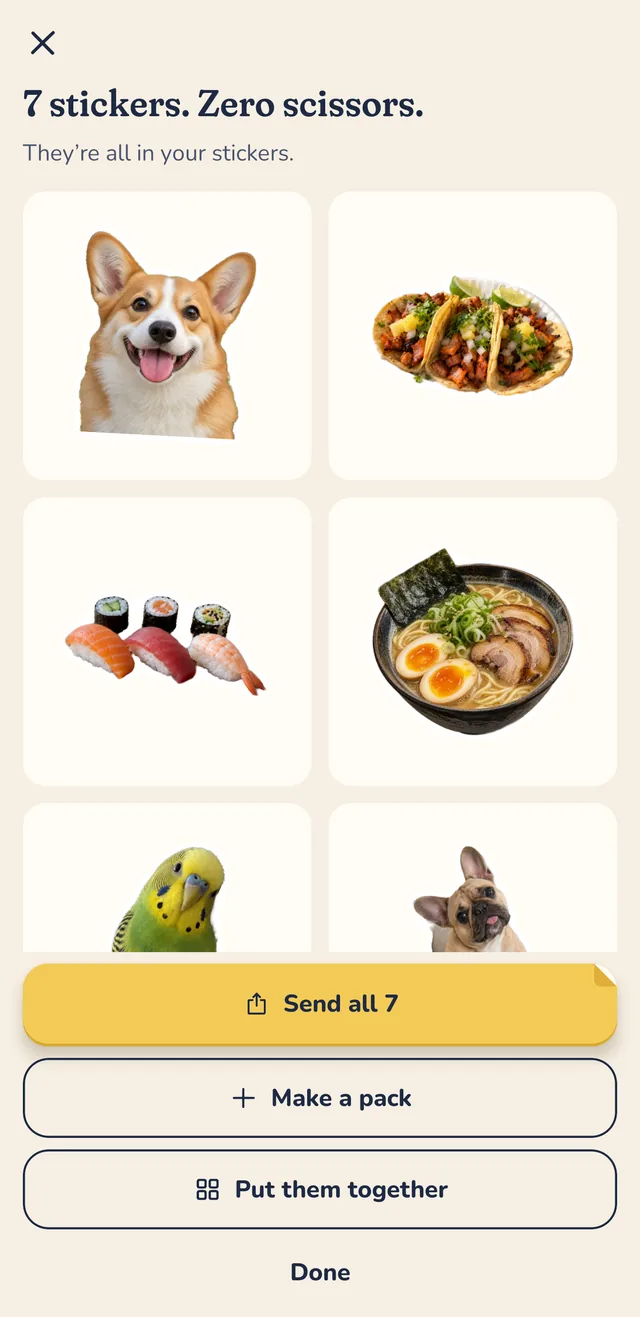
For a pack, tap Make a pack right after a batch, or go to Make, then Sticker pack, and choose New pack if asked. Add stickers under Add from your library, tap Save, then use Send to for WhatsApp or Telegram. PAPLO sends WhatsApp packs of 3 to 30 stickers and Telegram packs of 1 to 30. Read more in the WhatsApp guide and the Telegram guide.
For ready-made packs, you can add the free Ploo: Daily Drama in the app, or Chat, Is This Real?, which is part of PAPLO Plus, and send either one to WhatsApp or Telegram.
Which way is better on Android?
| You want to… | Better pick |
|---|---|
| One quick sticker, nothing to install | Google Photos or Samsung Gallery |
| Edit the sticker after | PAPLO |
| Cut out many photos at once | PAPLO |
| Add a border or caption | PAPLO |
| Make a pack for WhatsApp or Telegram | PAPLO |
| Send straight from a row of chat apps | PAPLO |
The built-in tools are free, quick and good for the odd sticker. PAPLO is for when stickers become a habit. PAPLO is also free for making and sending, with one optional purchase for more tools and no subscription.
Using an iPhone as well? Read how to make stickers on iPhone. Browse all sticker guides, or visit support if you have a question.
Get PAPLO
Quick answers
Can every Android phone make stickers from photos?
No. Google says Photos stickers work on most Android devices with the latest update and at least 4 GB of RAM. Samsung’s Gallery sticker feature depends on your Galaxy model and software version. PAPLO runs on Android 7.0 or later.
Can I edit a sticker I made in Google Photos?
Google’s help page says stickers cannot be modified at this time. You can copy or share them. In PAPLO you can add a border, a caption and fix the cutout edge with Erase and Restore.
How do I send a sticker to WhatsApp from Android?
In PAPLO, tap Share on a sticker and pick WhatsApp from the row of chat apps. For a whole pack, use Send to, then WhatsApp. See the WhatsApp guide for pack rules.
Does PAPLO need an account on Android?
No. There is no PAPLO account, no ads, no subscription and no watermark. Backup is optional and goes to your own Google Drive.
Sources
- Google Photos Help: Create stickers from your photos (Android)
- Samsung Support: Create custom stickers on Galaxy phones and tablets
Menus change between app versions. If a step looks different on your phone, the official page above is the final word.