
How to make iMessage stickers from your photos
Last updated
The best iMessage stickers are the ones nobody else has: your cat mid-yawn, your friend’s worst selfie, the burnt toast from Sunday. You can make them from your own photos in under a minute. Your iPhone handles one sticker at a time, and PAPLO handles a whole pack.
How do I make an iMessage sticker from a photo?
Start in the Photos app, not in Messages. Live Stickers cuts the subject out of a photo and saves the result to your stickers, ready for Messages. The steps below follow Apple’s iPhone guide.
- Open the Photos app and tap a photo to open it full screen.
- Touch and hold the subject, then let go.
- Tap Add Sticker.
- Tap Add Effect if you want an effect such as Outline or Comic.
- Close the stickers menu and open Messages.
Menu names can shift between iOS updates, so if a button looks different, check Apple’s guide linked below.
How do I send it in a conversation?
Your new sticker is already waiting in Messages.
- Open a conversation in Messages.
- Tap the + button next to the message field.
- Tap Stickers and pick your sticker.
- Send it on its own, or touch and hold it and drag it onto a message bubble.
Dragging is the fun part. A sticker of your dog looking disappointed lands much harder on top of the message it is disappointed in.
What makes a photo work as a sticker?
A sticker has to read at the size of a thumbnail, in a busy chat. Before you make one, check the photo for these:
- One clear subject. A single pet, person or plate beats a crowded scene.
- Contrast with the background. A black cat on a black sofa is hard to cut out.
- A big reaction. Faces, poses and disasters work better than neat, posed photos.
- The whole subject in frame. Ears, tails and elbows that are cut off by the edge stay cut off.
Need a starting point? Our guide to sticker ideas for group chats has plenty. If the outline comes out rough, read how to cut out a photo.
What if I want a whole pack?
Live Stickers makes one sticker at a time, and they all land in the same place. If you want every face your dog makes, or a set of inside jokes for one group chat, a pack is easier to keep together. PAPLO cuts out the photos in one go, on your phone, then sends them to Messages as a pack.
PAPLO is on the App Store. It works on iPhone with iOS 15.5 or later.
- Open PAPLO. The first time, tap Import photos. After that, use the Import button on the camera screen. You can pick up to 50 photos at a time.
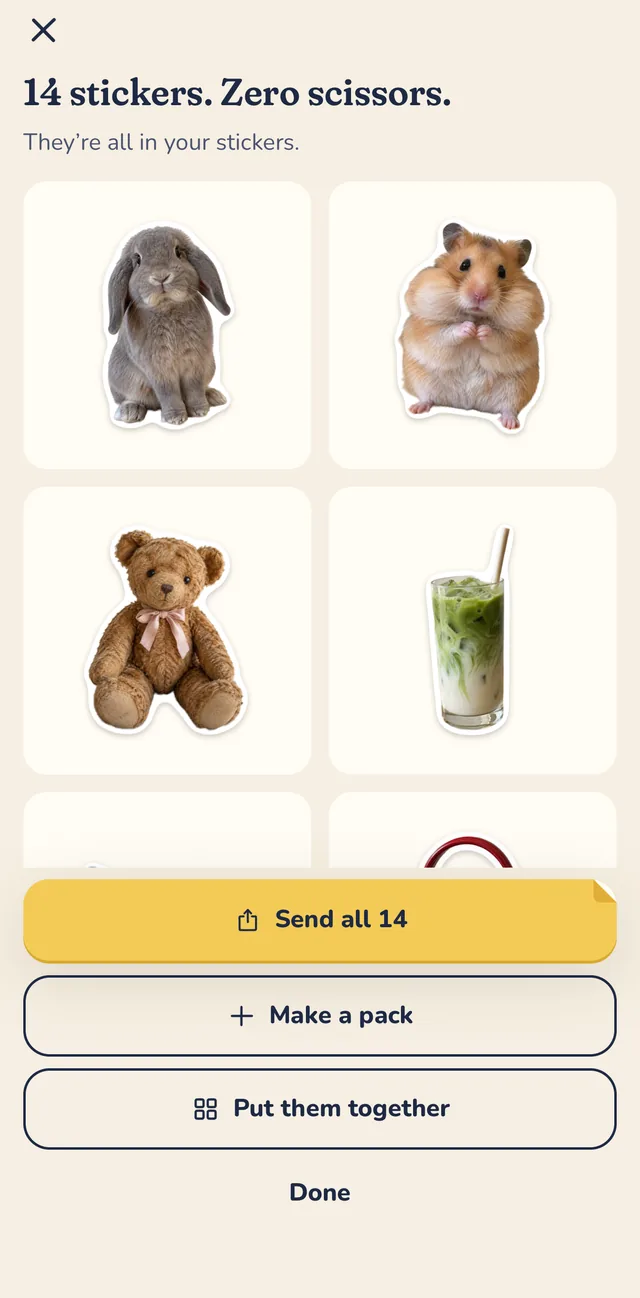
- Wait for the cutouts. PAPLO shows “Cutting out” with your photo count.
- On the finish screen, tap Make a pack. Later, you can start one from Make, then Sticker pack.
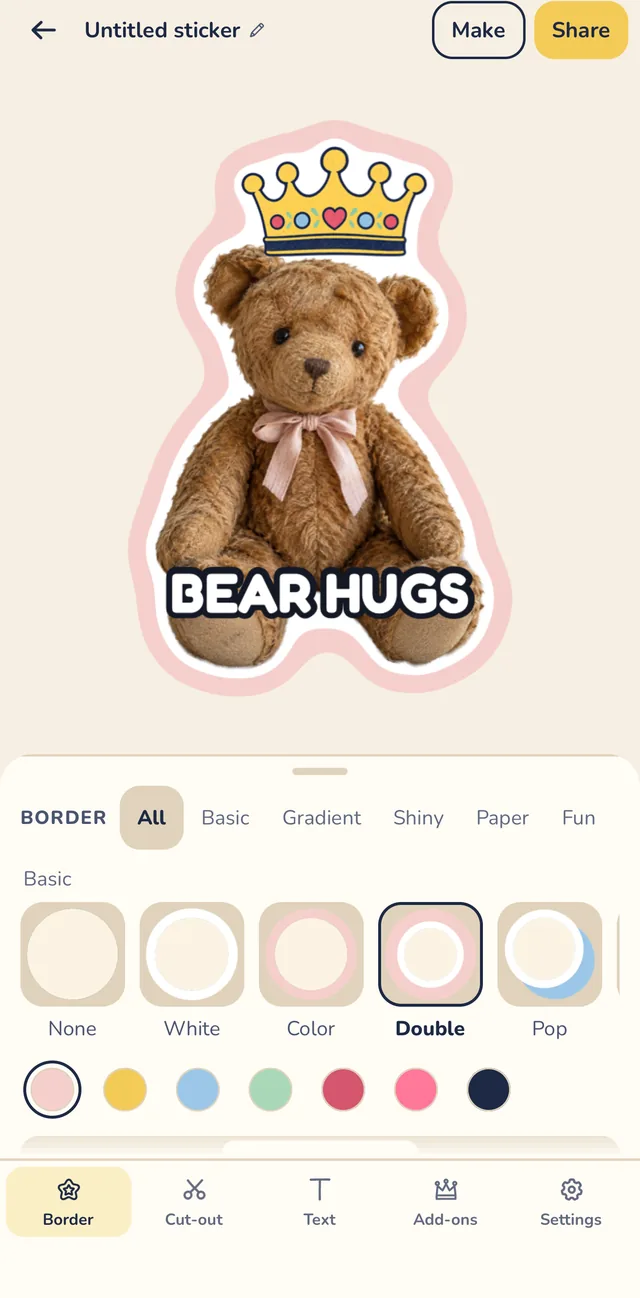
- Tap a sticker to open the editor. Under Border, pick an outline. Under Text, type a Caption. If an edge is off, tap Cut-out, then Open cut-out editor, and use Erase and Restore.
- Check the pack name, tap a sticker to make it the cover, and tap Save.
- Open Send to and choose Messages.
Where to find your pack
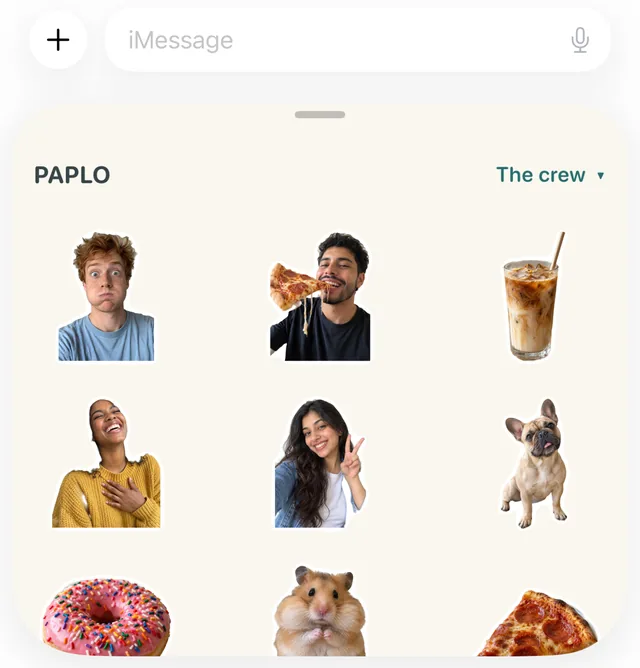
In any conversation, tap +, then PAPLO. Your stickers are in the drawer, under the message field.
Want to try it before you make your own? Add the free Ploo: Original or Group chat pack in PAPLO and send it to Messages. The iMessage sticker packs page has more, and our funny iMessage stickers are ready for the group chat.
Live Stickers or PAPLO?
| You want to… | Better pick |
|---|---|
| Make one sticker from one photo, right now | Live Stickers |
| Add an effect without installing anything | Live Stickers |
| Cut out many photos at once | PAPLO |
| Add a border or a caption | PAPLO |
| Keep a set together as its own pack | PAPLO |
| Send the same stickers to WhatsApp too | PAPLO |
If you make a sticker now and then, Live Stickers is all you need, and it is already on your phone. If you are the friend who keeps the group chat stocked, PAPLO saves you the repeat taps.
Friends on other apps? Read how to turn a photo into a WhatsApp sticker or make a Telegram sticker pack. For more on iPhone, including where stickers are saved and how to delete one, see how to make stickers on iPhone. All our sticker guides are in one place, and support is there if you get stuck.
Get PAPLO
Quick answers
Can I make iMessage stickers without an app?
Yes. On iOS 17 or later, open a photo in the Photos app, touch and hold the subject, then tap **Add Sticker**. The sticker appears in Messages under **+**, then **Stickers**. It is free and works one photo at a time.
Why don’t I see my sticker in Messages?
Check that your iPhone runs iOS 17 or later, then look under **+**, then **Stickers** in a conversation. A pack sent from PAPLO is under **+**, then **PAPLO**. If you made a sticker on another device, Apple says stickers sync through iCloud when you use the same Apple Account, so check that too.
Can I send a PAPLO pack to Messages on Android?
No. Sending a pack to the Messages sticker drawer is an iPhone feature. On Android, PAPLO sends single stickers to WhatsApp, Telegram and other chat apps. See the Android guide.
Does PAPLO upload my photos?
No. There is no PAPLO account, your photos are processed on your phone, and PAPLO never uploads your photos.
Sources
- Apple Support: Make stickers from your photos on iPhone
- Apple Support: Send stickers in Messages on iPhone
Menus change between app versions. If a step looks different on your phone, the official page above is the final word.