How to make stickers from your photos
Last updated
Almost any photo can become a sticker: your pet, your friends, your lunch. All it takes is cutting the subject away from its background. Your phone may already do that for free. This guide shows the quickest way on each phone, and what to use when you want more than one.
Which way should I use?
Pick by how many stickers you want and where you will send them.
| You want to… | Use this |
|---|---|
| Make one sticker on iPhone | Live Stickers in Photos |
| Make one sticker on Android | Google Photos or Samsung Gallery |
| Make one sticker for WhatsApp | WhatsApp’s own creator |
| Cut out many photos at once | PAPLO |
| Add borders and captions | PAPLO |
| Build packs for WhatsApp, Telegram, Messages | PAPLO (Messages packs on iPhone) |
How do I make a sticker from a photo on iPhone?
Live Stickers is built into iOS 17 and later.
- Open the Photos app and tap a photo.
- Touch and hold the subject, then let go.
- Tap Add Sticker.
- Add an effect if you want one, then close the menu.
Your sticker is now in your stickers menu. For the full steps, read how to make stickers on iPhone, or go straight to how to make iMessage stickers.
How do I make a sticker from a photo on Android?
It depends on your phone. Google Photos and Samsung Gallery can both lift a subject out of a photo, though not every device supports it.
In Google Photos:
- Open Google Photos and tap a photo.
- Touch and hold the subject.
- Choose Copy or Share.
- Paste or share it into a chat app.
On a Samsung Galaxy, open the picture in Gallery, touch and hold the subject, and tap Save as sticker. If your phone does not support either, check how to make stickers on Android for other options.
How do I make a sticker inside WhatsApp?
WhatsApp has its own creator, so you can skip your gallery app. Open a chat, open the sticker panel, tap Create and choose a photo. WhatsApp picks out the main subject. Menu names differ between versions, so see the steps in our guide to turning a photo into a WhatsApp sticker.
What photos make the best stickers?
A sticker shows up small, in a chat that keeps moving. That changes which photos are worth using:
- Pick one subject. One pet, one face or one plate reads faster than a group shot.
- Look for a strong reaction. A side-eye, a burnt dinner or an unflattering candid says more than a polite smile.
- Use a clear background. The more your subject stands out, the cleaner the cutout.
- Keep the whole subject in frame. Anything cut off by the edge of the photo stays cut off.
- Add a few words. A short caption can turn a nice photo into a reply you will actually use.
Stuck for ideas? Try these sticker ideas for your group chat. If the cutout is messy, see how to cut out a photo. Want movement? Read how to make GIF stickers.
What if you want to make a whole batch?
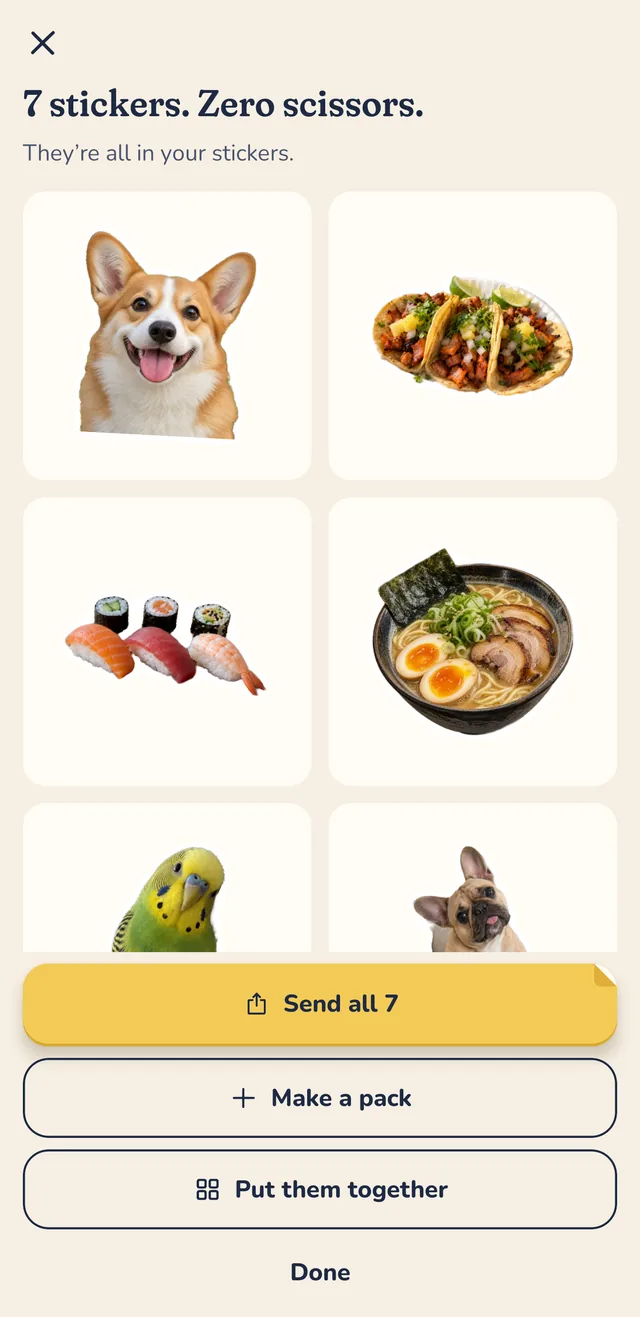
The built-in tools work one photo at a time. If you want a dozen stickers of your dog, that gets slow. PAPLO takes a whole batch, cuts every subject out on your phone, and sends the results to your chats.
PAPLO is on the App Store and Google Play. It works on iPhone (iOS 15.5 or later) and Android (7.0 or later).
- Open PAPLO. The first time, tap Import photos. After that, use the Import button on the camera screen.
- Pick up to 50 photos. PAPLO shows “Cutting out” with your photo count while it works.
- On the finish screen, tap Make a pack for a set, or Done to go to your library.
- Tap any sticker to open the editor. Under Border, pick an outline. Under Text, type a Caption.
- If an edge is off, tap Cut-out, then Open cut-out editor, and use Erase and Restore. To send one sticker, tap Share.
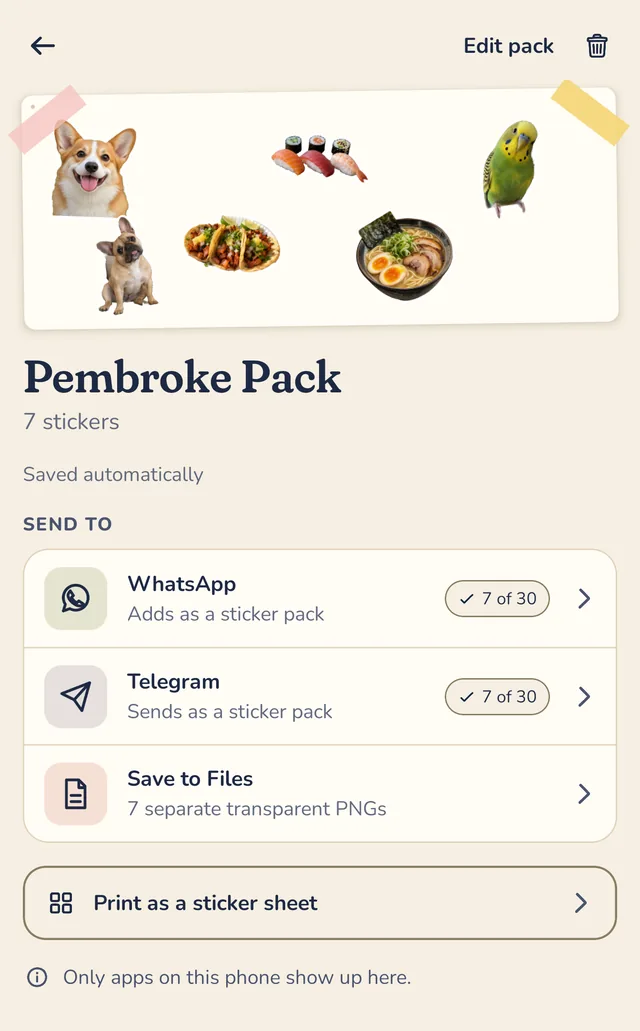
- In the pack, open Send to and choose where it goes: WhatsApp and Telegram on both phones, plus Messages on iPhone.
Where do my stickers go?
It depends on how you made them:
- Live Stickers: in your stickers menu, and in Messages under +, then Stickers.
- Google Photos: you copy or share each one straight into a chat.
- WhatsApp’s creator: in your WhatsApp sticker tray.
- PAPLO: in the PAPLO library on your phone, and in each app you send a pack to.
Not ready to make your own? Add a ready-made pack from our sticker packs page. Every guide is in the guides list, and support can help if something is not clear.
Get PAPLO
Quick answers
What is the easiest way to make a sticker from a photo?
Use what is already on your phone. On iPhone, touch and hold the subject in the Photos app and tap **Add Sticker**. On Android, try Google Photos or Samsung Gallery. For many photos at once, or for borders and captions, use a sticker app like PAPLO.
Can I make stickers from photos for free?
Yes. The tools built into iPhone, Android and WhatsApp are free. PAPLO is free to use for making and sending stickers, with an optional one-time PAPLO Plus purchase, no subscription and no watermark.
Does this make printed stickers?
This guide is about digital stickers you send in chats. PAPLO can also lay out sheets at real size for you to print yourself, but it does not print or ship stickers.
Can I make stickers of my friends?
Yes, and it is a group chat tradition. Keep it friendly: ask before you share a sticker of someone beyond the chat they are in. PAPLO processes your photos on your phone and never uploads them.
Sources
- Apple Support: Make stickers from your photos on iPhone
- WhatsApp Help Center: How to create and share custom stickers and sticker packs
Menus change between app versions. If a step looks different on your phone, the official page above is the final word.